Connect An XBOX 360 to a Windows 8 PC to Stream Audio & Video
Windows 8 is fantastic. The user interface is beautiful, it’s ridiculously fast, and it’s very stable. But if you don’t know your way around, things can get frustrating. They changed Windows 8 just enough to confuse their users. After I installed the RTM last week, I went to set up streaming video between my XBOX 360 and my Windows 8 desktop.
Since Windows Media Center is no longer an option for many users (not included and a separate download for Pro users only), the best way to stream between an XBOX and Windows 8 is to allow streaming through the Video Player app on the XBOX 360. This app uses your media library to directly stream many types of video from your Videos Library on your Windows 8 PC.
STEP 1:
Turn on your XBOX 360 and navigate to the video tab. On that tab, select the My Video Apps tile.

STEP 2:
Select the Video Player app tile inside the My Video Apps section.

STEP 3:
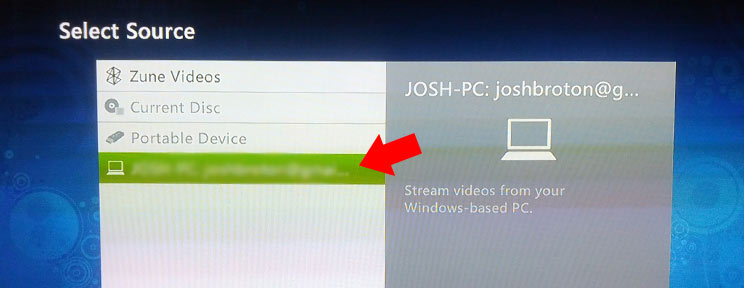
Select the source of the video you would like to stream. Normally, this is your PC name followed by your live account email (on Windows 8).
STEP 4:
If you’ve never connected your XBOX 360 to your Windows 8 PC, you’ll get this error: “Can’t connect. Make sure you have activated this console on your computer.” This is a good thing. It means you’re in the right spot.

STEP 5:
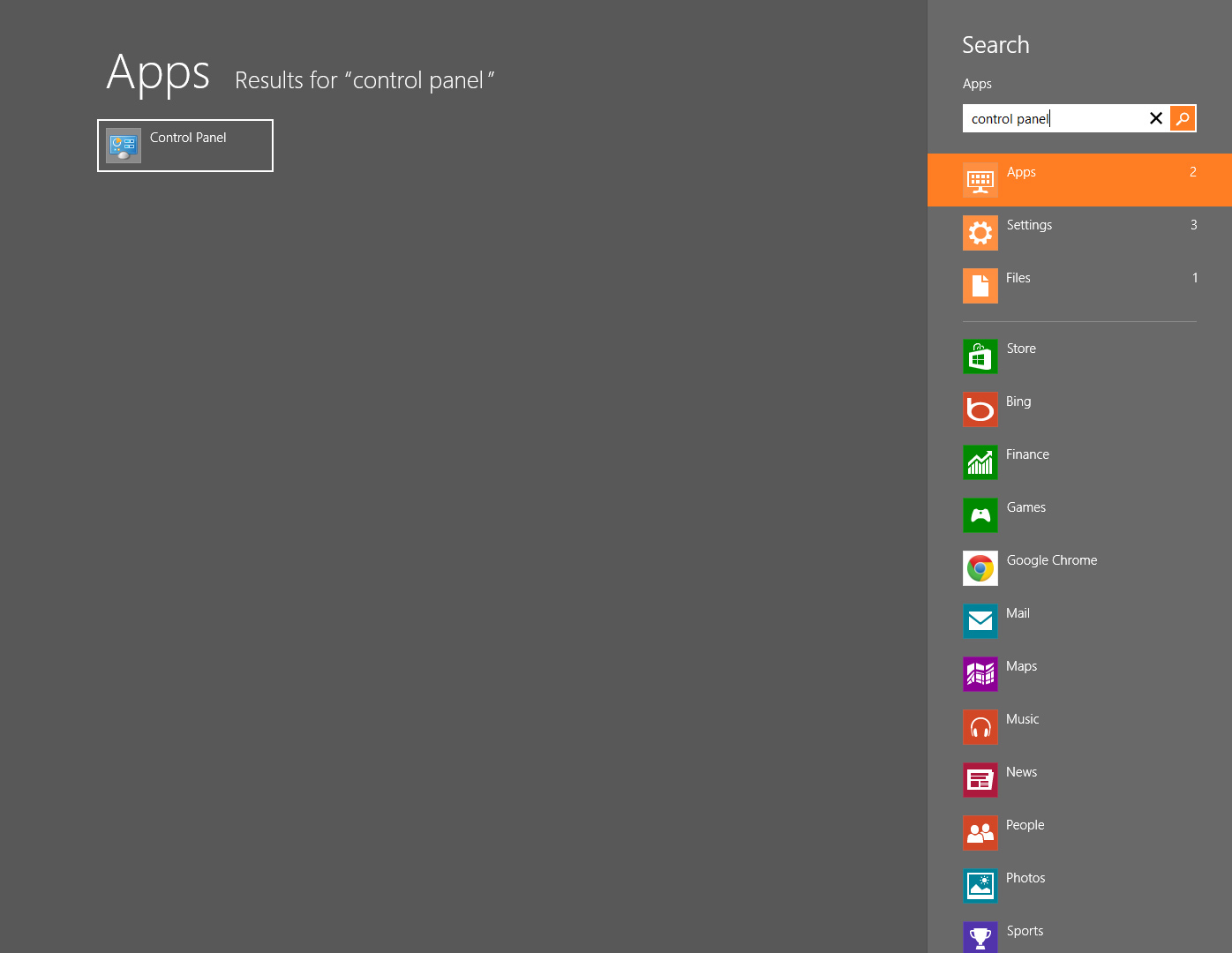
On your Windows 8 PC, hit the Windows key on your keyboard and type “Control Panel”. This will bring up all matching apps, which includes your Control Panel.
STEP 6:
When the Control Panel loads, select the “Network and Internet” title option.

STEP 7:
On the next screen, select the “View network computers and devices” option.

STEP 8:
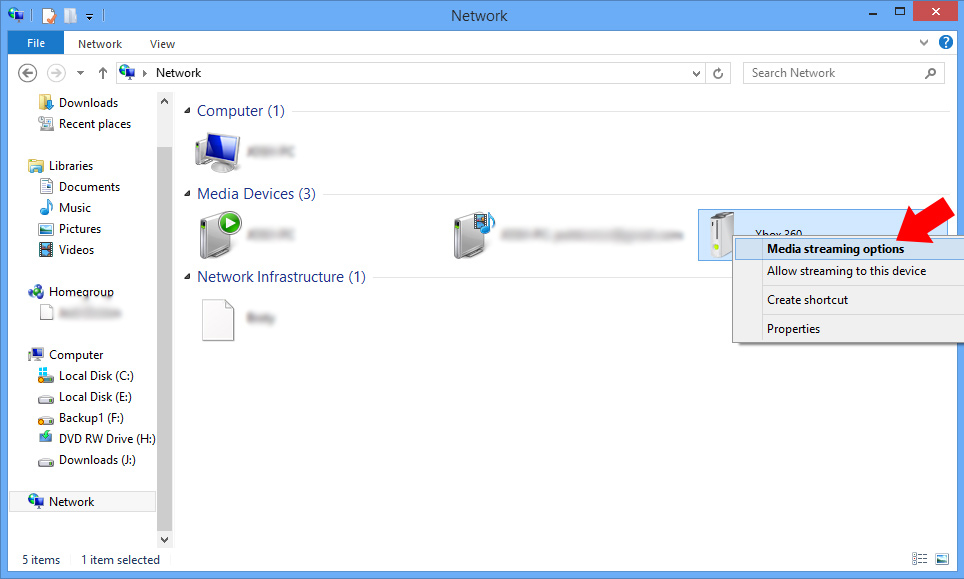
Right click on your Xbox 360 and select “Media streaming options”.
STEP 9:
Next to the Xbox 360, check the “Allowed” checkbox.

STEP 10:
Hit Next again and then Finish.

STEP 11:
Go back to the XBOX 360 and select your Windows 8 PC inside the Source Selection window. Success!

Hopefully, I’ve answered any questions that you may have about setting up your XBOX 360 to stream video (and audio) from a Windows 8 PC. Adapted slightly, this process should work for you on Windows 7 as well. If you have any questions, feel free to post them in the comments and I’ll address them in post updates.
Happy streaming!